

wp:paragraph
When was the last time you restarted your network device? A slow connection doesn’t always come from your service company.
/wp:paragraph
wp:paragraph
Many factors can disrupt access—from environmental conditions to temporary service issues.
/wp:paragraph
wp:paragraph
But often, the problem starts with your local equipment. If you deal with unstable access or reduced performance, check your signal distributor (and the separate unit if your setup uses one).
/wp:paragraph
wp:paragraph
You can often fix these problems by powering down the device, waiting briefly, and turning it back on. If that doesn’t solve the issue, you might need to restore it to its original setup.
/wp:paragraph
wp:paragraph
After years of handling setup-related frustrations, I’ve found that restarting or resetting your equipment often solves the problem.
/wp:paragraph
wp:paragraph
In this walkthrough, I’ll show you how to restore access and what actions to try next if the first steps don’t help.
/wp:paragraph
wp:image {“id”:2367,”width”:”664px”,”height”:”auto”,”sizeSlug”:”full”,”linkDestination”:”none”,”align”:”center”}

/wp:image
wp:heading
Give your router a manual reset
/wp:heading
wp:paragraph
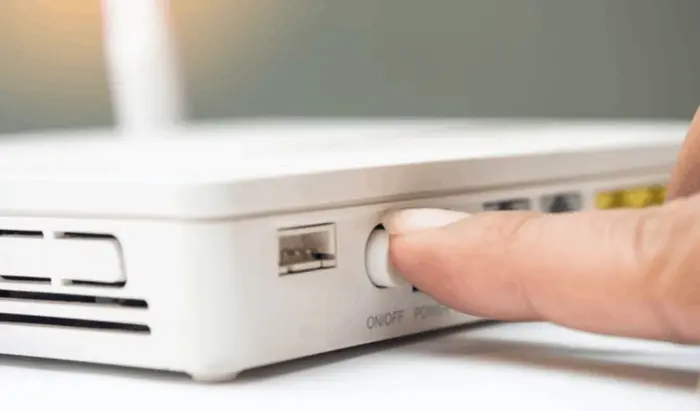
To refresh your connection, cut the power to the router, wait a few moments, then turn it back on.
/wp:paragraph
wp:paragraph
This method clears temporary errors and reinitializes the system. Restarting a glitchy game helps restore regular play, but resetting the router puts it back in a stable working condition.
/wp:paragraph
wp:paragraph
Restarting a network device resolves most connection issues. The system that manages communication between your equipment and the internet unit can stop working correctly.
/wp:paragraph
wp:paragraph
Powering the device off and back on is the first step to fixing signal problems.
/wp:paragraph
wp:paragraph
Do this:
/wp:paragraph
wp:list {“ordered”:true}
- wp:list-item
- Unplug the unit from its power source. You can disconnect it from the outlet or the device itself.
- Wait 30 seconds to let it shut down completely.
- Plug the unit back into the power.
- Wait another 30 seconds for it to power up fully. When the lights stabilize, reconnect your equipment to the wireless network.
/wp:list-item
wp:list-item
/wp:list-item
wp:list-item
/wp:list-item
wp:list-item
/wp:list-item
/wp:list
wp:heading
Check for Battery Backup
/wp:heading
wp:image {“id”:2369,”width”:”666px”,”height”:”auto”,”sizeSlug”:”full”,”linkDestination”:”none”,”align”:”center”}

/wp:image
wp:paragraph
Some routers have built-in battery support that lets them stay on briefly during power interruptions.
/wp:paragraph
wp:paragraph
If your device includes this feature, unplugging it from the wall may not be enough to shut it down completely.
/wp:paragraph
wp:paragraph
Once you’ve disconnected the power cable, confirm that all indicator lights have turned off.
/wp:paragraph
wp:paragraph
If any lights remain on, the unit is still powered. Look for a battery slot or compartment, remove the batteries, and ensure the router powers down fully.
/wp:paragraph
wp:paragraph
After waiting about 30 seconds, reconnect the power and reinsert the batteries.
/wp:paragraph
wp:paragraph
Restoring Your Router to Factory Settings
/wp:paragraph
wp:paragraph
If an essential reboot doesn’t fix the problem, reset your router to its factory settings.
/wp:paragraph
wp:paragraph
It will remove all personalized configurations, such as your network name and password, and assign a new public IP address. The router will return to its original state, like when you first set it up.
/wp:paragraph
wp:paragraph
Consider this step if you frequently reboot your router or experience slower Wi-Fi speeds than your wired connection.
/wp:paragraph
wp:paragraph
Before resetting, ensure that your router’s firmware is updated. To reset your router, follow these steps:
/wp:paragraph
wp:list {“ordered”:true}
- wp:list-item
- Keep the router powered on.
- Use a paper clip to press the Reset button or the available reset option on some models.
- Hold the button for about 30 seconds.
- Wait a minute or two for the router’s lights to turn back on.
- You can also reset your router through its mobile app or web portal, requiring your login credentials.
/wp:list-item
wp:list-item
/wp:list-item
wp:list-item
/wp:list-item
wp:list-item
/wp:list-item
wp:list-item
/wp:list-item
/wp:list
wp:heading
How to Determine the Source of Connectivity Issues
/wp:heading
wp:paragraph
When using separate devices for internet connectivity, troubleshoot each one individually.
/wp:paragraph
wp:paragraph
To verify if the primary device works, directly connect a device to it using a wired connection.
/wp:paragraph
wp:paragraph
If you gain internet access, the secondary device is likely the source of the problem. If the issue persists, reset both devices. Follow these steps:
/wp:paragraph
wp:list {“ordered”:true}
- wp:list-item
- Disconnect both devices from their power sources.
- Wait for about 30 seconds, then reconnect the primary device first, followed by the secondary device.
- Wait a few minutes for both devices to restart completely.
/wp:list-item
wp:list-item
/wp:list-item
wp:list-item
/wp:list-item
/wp:list
wp:paragraph
Resetting both devices should resolve most connectivity issues and restore internet access.
/wp:paragraph
wp:heading
Is It Time to Upgrade Your Device?
/wp:heading
wp:image {“id”:2368,”width”:”660px”,”height”:”auto”,”sizeSlug”:”full”,”linkDestination”:”none”,”align”:”center”}
/wp:image
wp:paragraph
If you experience frequent slowdowns or interruptions that require you to restart your device regularly, consider upgrading to a newer model.
/wp:paragraph
wp:paragraph
A well-regarded option delivers strong performance in speed, range, and responsiveness based on comprehensive testing.
/wp:paragraph
wp:paragraph
Experts advise replacing your device every few years, but if you have numerous connected gadgets or keep up with the latest technology, you should upgrade more frequently.
/wp:paragraph
wp:paragraph
Remember, the performance of your device heavily relies on the quality of the network it’s connected to.
/wp:paragraph
wp:paragraph
To pinpoint the cause, run performance tests by directly connecting to the network and compare those results with your wireless speeds.
/wp:paragraph
wp:paragraph
If the direct connection doesn’t meet your expectations, you might need to switch to a faster service or change providers.
/wp:paragraph